A two-person HVAC owner can spend Monday morning in two unrelated software worlds. One screen needs tomorrow's service calls, technician assignments, arrival windows, and customer messages. Another needs last week's supplier invoice, bank activity, payroll planning, and the question every owner asks before Friday: is there enough cash in the account?
That split explains why Jobber vs QuickBooks feels like a difficult buying decision. The products overlap around invoices and payments, but they solve different jobs. Jobber is built around field-service operations, while QuickBooks Online is accounting-first. For most growing home-service businesses, the decision isn't which app wins. It's which side of the business is creating the bottleneck, and whether both sides need a connected system.
The Two Jobs Most Crews Confuse for One
A field-service owner needs a tool that follows the work from request to completed visit. That means scheduling, assigning the right technician, recording what happened at the property, communicating with the customer, and getting the invoice out before the job disappears into a notebook.
An accounting system follows a different trail. It organizes income and expenses, maintains the financial record, supports reconciliation, and produces reporting for the owner or accountant. QuickBooks Online's role is the books, not the dispatch board. Jobber's role is the work, not a complete accounting ledger.
| Business job | Jobber | QuickBooks Online |
|---|---|---|
| Schedule visits and assign field workers | Built for this operational workflow | Not the central purpose |
| Manage quotes, jobs, and customer communication | Built around service jobs | Limited overlap through accounting records |
| Send invoices after field work | Connected to the job workflow | Connected to the financial record |
| Maintain accounting records and financial reporting | Not a full accounting system | Core purpose |
| Connect field activity with accounting | Sends selected records to QuickBooks Online on eligible plans | Receives accounting-relevant records from Jobber |
The distinction matters across trades. A cleaning company may need recurring visits and fast payment collection. A lawn-care operator may care more about repeat routes and customer status. A plumbing company may need a service history that stays attached to the property while the office handles financial reporting separately.
Practical rule: The software that schedules the work shouldn't be forced to replace the accounting system, and the accounting system shouldn't be forced to act like a dispatch office.
Jobber was founded in 2011 in Edmonton by Sam Pillar and Forrest Zeisler. Its public-facing materials said it had surpassed 100,000 customers by 2026 and was used by more than 400,000 service professionals daily, according to Jobber's company profile. Those figures illustrate the appeal of software designed around home-service workflows, but they don't change the basic product boundary.
QuickBooks has a much broader small-business accounting role. Intuit says its Small Business Index uses historical data going back to January 2015 in the United States and Canada and January 2018 in the United Kingdom, as described in the QuickBooks Small Business Index release. That is a financial data and reporting context, not a reason to use QuickBooks as a field dispatch platform.
What Jobber Does in a Normal Week
Jobber makes the most sense when the business problem starts at the customer's property. The office can organize requests, quotes, jobs, visits, and invoices around the way technicians work.
The operational loop
A normal service workflow begins with a request or quote. The business can build a job, assign a worker, place visits on the calendar, and keep the customer record attached to the work. For a small HVAC, electrical, plumbing, or cleaning company, that structure is more useful than a general invoice screen because the job has a place in the schedule before it becomes a financial transaction.
The field team also needs context. Job notes, visit details, and customer history help the technician understand what happened previously and what needs to happen next. Quotes and invoices can stay connected to the same service relationship instead of living as isolated documents.
Customer communication is another important boundary. A field-service platform can keep appointment information and job status close to the work. That reduces the need for an owner or office manager to reconstruct the day from texts, paper notes, and separate calendars.
Where Jobber stops
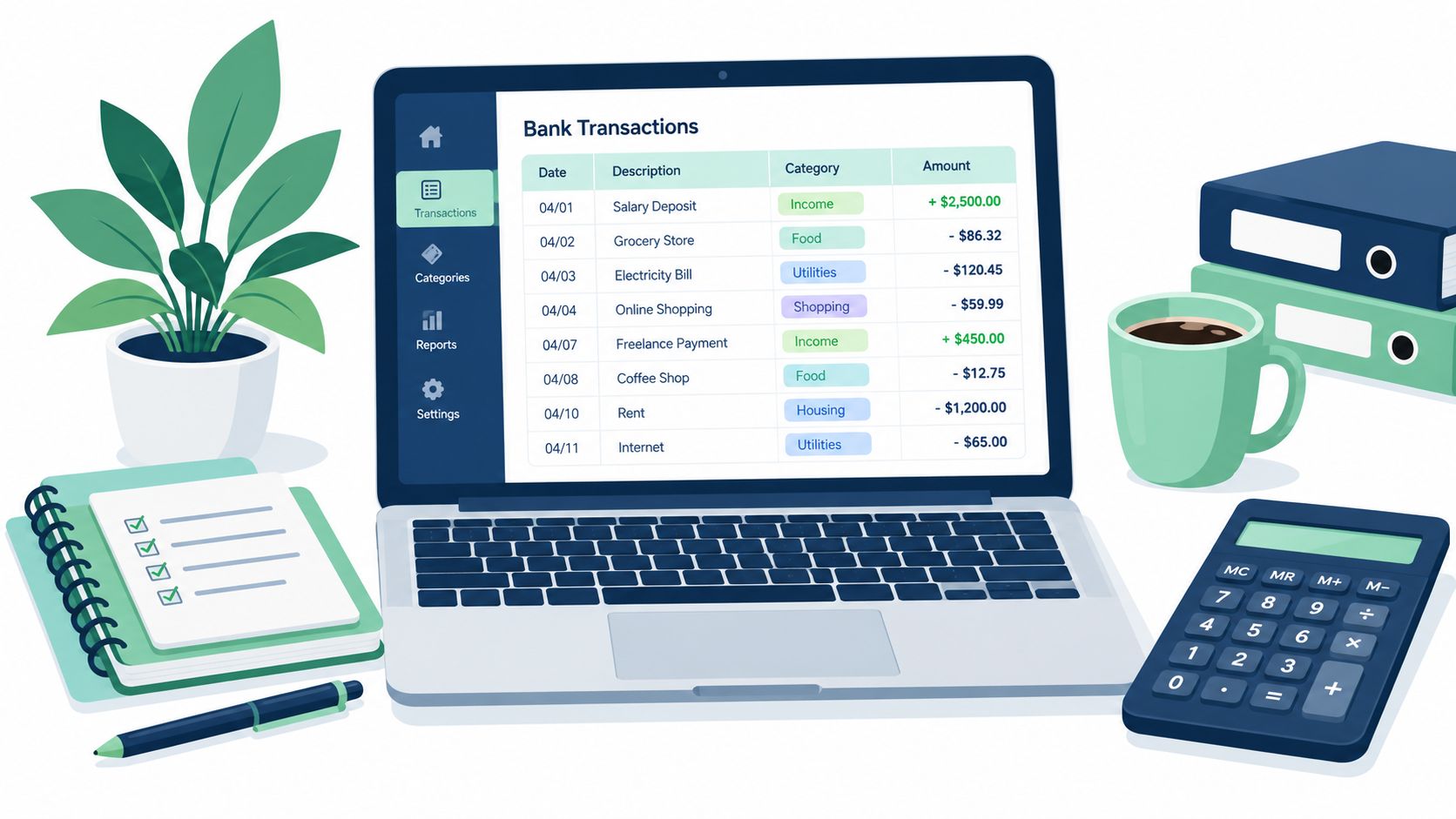
Jobber can create invoices and support payment workflows, but it isn't a replacement for full bookkeeping. It doesn't become a tax-ready general ledger just because a completed service call produced an invoice.
That means an owner shouldn't buy Jobber expecting it to handle every financial responsibility. The following work still belongs in an accounting-first system:
- Bookkeeping: Organizing the complete financial record requires accounting software.
- Tax reporting: Tax preparation needs financial records beyond field invoices.
- Payroll administration: A field-service schedule isn't the same thing as payroll processing.
- Deep financial analysis: Service activity and accounting reports answer different questions.
Jobber is the stronger fit when the recurring pain is missed appointments, slow quoting, scattered job notes, or invoices that don't go out promptly. It isn't the right single system for a business that mainly needs clean books and financial reporting.
What QuickBooks Online Does in a Normal Week
QuickBooks Online starts with the money trail. It gives an owner or bookkeeper a place to organize business income and expenses, maintain accounting records, and prepare financial information for review. That makes it a sensible foundation when the business already has a manageable way to schedule and complete work.
The accounting loop
A typical accounting workflow begins with transactions and records. The business categorizes activity, reviews what entered and left the bank account, and checks that the financial record matches the underlying activity. Invoices and payments can sit inside that record, but they aren't automatically connected to a technician's route or the sequence of a service visit.
QuickBooks Online also serves a different audience inside the company. A technician needs job context and fast field updates. An owner, bookkeeper, or accountant needs the financial picture. Those users may work from the same customer transaction, but they don't need the same interface.
Where QuickBooks stops
QuickBooks Online is not a home-service dispatch board. It shouldn't be expected to manage the full movement of a crew from one property to the next.
The gap becomes obvious when the owner needs to coordinate field activity:
- Scheduling: Accounting records don't replace a working service calendar.
- Dispatch: A financial system isn't designed to assign field visits as the day changes.
- Job context: Accounting line items don't provide the full operational history of a visit.
- Customer messaging: Financial records aren't a substitute for appointment communication.
- Field execution: Technicians need a workflow designed for work in progress, not only transactions after the fact.
QuickBooks Online is the better fit when the urgent problem is disorganized books, unclear financial reporting, or a weak handoff to the accountant. It becomes a poor substitute for field software when the owner is still coordinating every appointment manually.
Side by Side on Scheduling, Invoicing, Payments, and Reporting
The cleanest comparison is workflow by workflow. The products overlap around customer charges, but the surrounding job is different.
| Workflow | Jobber | QuickBooks Online | Winner |
|---|---|---|---|
| Scheduling and dispatch | Organizes service work and field assignments | Accounting-first workflow | Jobber, because the calendar belongs with the work |
| Invoicing | Connects the invoice to the service workflow | Connects the invoice to the accounting record | Jobber for field billing, QuickBooks Online for books |
| Payments | Keeps payment activity near the service transaction | Keeps payment activity near the financial record | Tie, depending on whether the priority is field collection or accounting control |
| Reporting | Focuses on operational activity | Focuses on financial reporting | QuickBooks Online for the books |
| Mobile field work | Designed around the service workflow | Better suited to accounting tasks than truck-based job execution | Jobber, when technicians need to update work in the field |
Scheduling is not accounting
A service business needs more than a list of customer names and invoice balances. It needs to know who is going where, what the visit involves, and whether the customer has received the next message. Jobber owns that operational context.
QuickBooks Online can still receive the financial result of the job. It doesn't need to own the technician's day to produce accurate books.
Invoices have two meanings
In Jobber, an invoice can represent the final step of a service visit. In QuickBooks Online, the invoice is part of the accounting record. Both perspectives matter, but only the field-service perspective keeps the invoice attached to the work that created it.
That is why a small crew can feel that QuickBooks “does invoicing” and still remain frustrated with billing. The invoice may exist, but the office can still be doing too much manual work to turn completed visits into billable records.
Reporting answers different questions
A Jobber report can help an owner understand service activity and the operational side of the business. QuickBooks Online is the stronger home for financial reporting and the records needed for accounting review.
The right choice depends on the question. “Which jobs are still open?” belongs on the operations side. “How is the business performing financially?” belongs in the accounting system.
Pricing, the QuickBooks Sync, and the Full Cost of Running Both
Jobber and QuickBooks Online solve different problems, so comparing one plan from each as if they were substitutes gives you only half the picture. Jobber runs field operations. QuickBooks Online maintains the accounting record. The cost comes from choosing the right handoff between them.
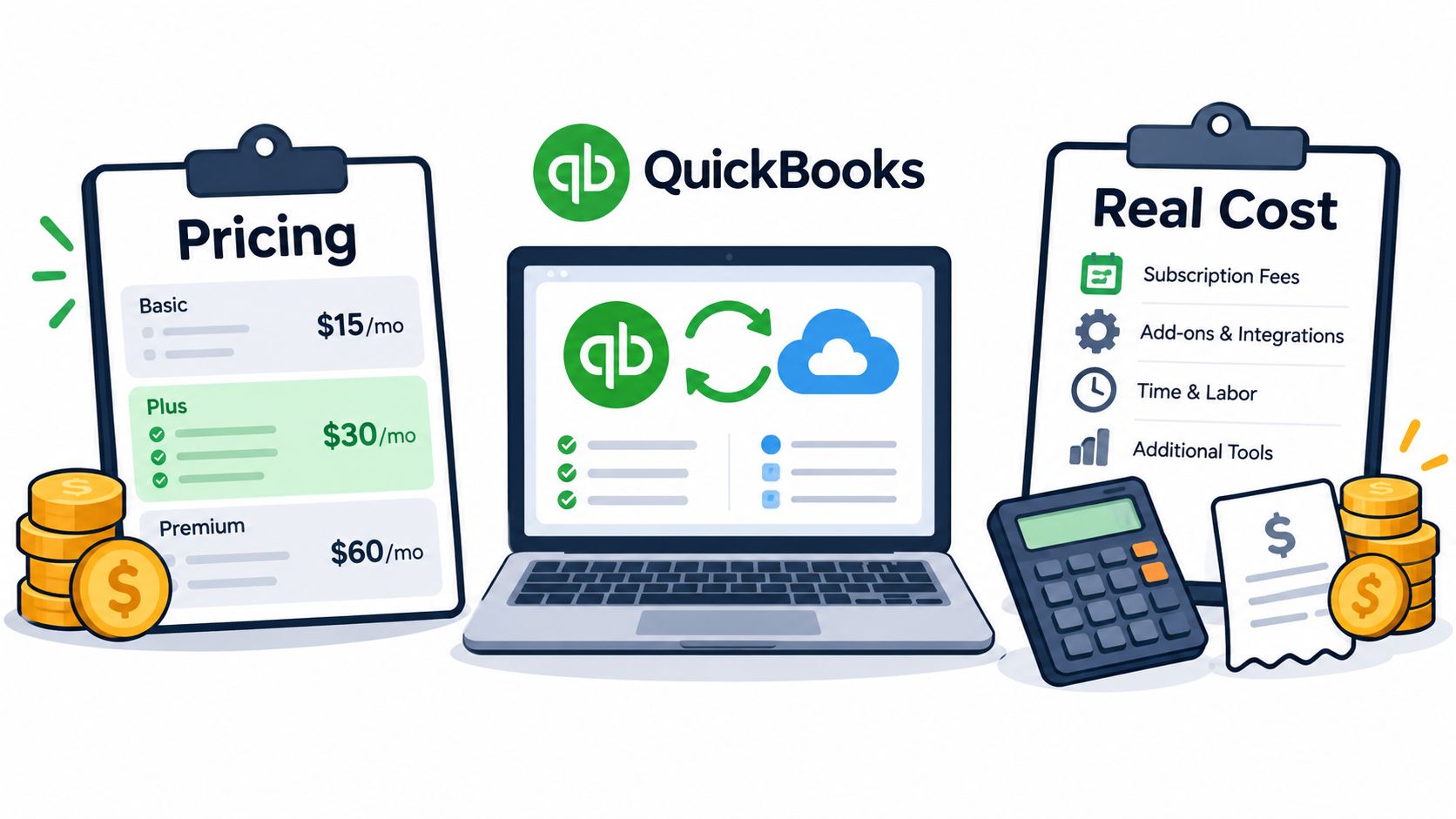
Jobber publishes a 14-day trial with full access to the Grow plan and no credit card required on its pricing page. The page says users receive a reminder near the end of the trial to add billing information and avoid an interruption. The available published material does not establish a reliable subscription figure for every tier, so request the current price for your team size instead of relying on an old roundup.
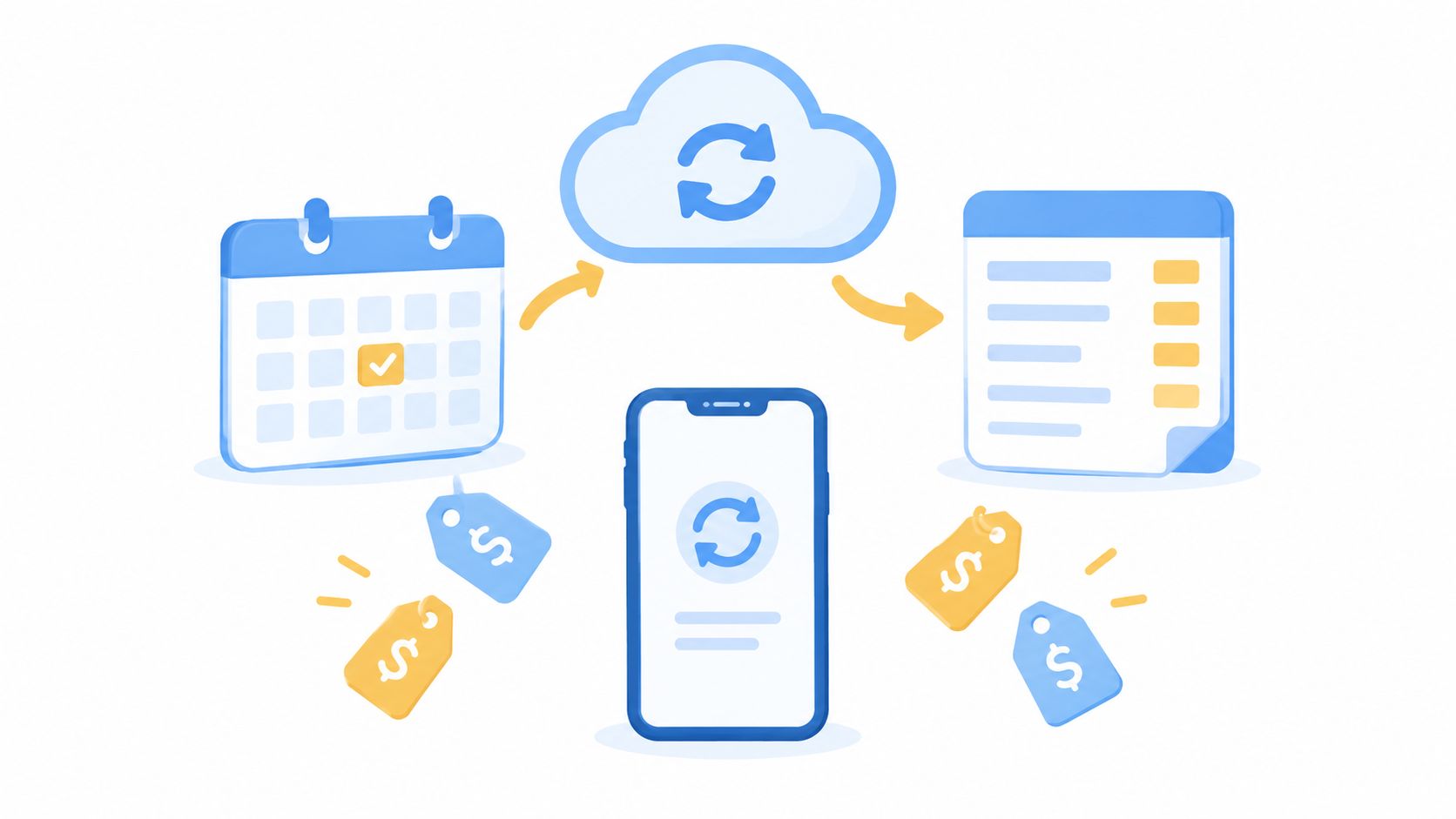
Jobber's QuickBooks Online integration is available on Connect plans and up, according to the Jobber QuickBooks Online integration page. The sync sends clients, products and services, timesheets, invoices, payments, refunds, tips, and payouts from Jobber to QuickBooks Online. It does not connect with QuickBooks Desktop.
The handoff has rules
The integration cuts duplicate entry, but it does not turn both applications into interchangeable editing systems. Set up and edit shared records in Jobber to reduce sync conflicts. QuickBooks Online should receive the accounting information, not become a second dispatch or operations console.
Data direction matters too. Jobber documents a one-time, one-way import from QuickBooks Online into Jobber for clients and products or services. The Jobber migration guidance says that switching to the new integration does not create an initial import when both systems already contain data.
The subscription is only one part of the combined cost. Budget for:
- Payment processing: Card and other payment charges may sit outside the software subscription.
- Team access: The number of users who need access can affect the appropriate plan.
- Payroll: Payroll remains a separate consideration from field-service software and bookkeeping.
- Cleanup time: The sync saves work only when records are configured consistently.
Price the full stack before choosing either product. If you only need accounting, QuickBooks Online may be enough. If you only need field coordination and can manage accounting manually, Jobber may fill the immediate gap. Once both jobs create significant administrative pressure, forcing one application to replace the other usually costs more time.
Three Crews and the Tools That Fit Each One
A solo residential cleaner may spend the day moving between customer visits and have little time for administration. The owner needs scheduling, customer communication, and prompt billing without building a complicated system. If the books stay simple, the clearest starting point is Jobber alone, with the books kept simple in a spreadsheet until volume justifies QuickBooks Online. Adding accounting software too early creates another system to maintain before it solves a real bottleneck.
A small lawn-care crew faces a different operating pattern. Recurring service produces a steady flow of visits, customer changes, invoices, and payments. Jobber should organize the recurring field schedule, while QuickBooks Online gives the bookkeeper the financial records to manage. Jobber's Connect-level integration matters here because the published sync details place QuickBooks Online connectivity on Connect plans and up. The verdict is run both when recurring field work and accounting accuracy carry equal weight.
A plumbing business with a service manager and several trucks has more coordination at stake. The manager needs a live view of assigned and active work, while the owner needs financial records that do not depend on a spreadsheet assembled at month-end. Jobber should own dispatch and customer-facing operations. QuickBooks Online should own the books. The verdict is choose Jobber on a Connect-tier plan specifically because the sync is required, not optional.
The one-tool cases
QuickBooks Online alone fits a business that already has scheduling under control and mainly needs dependable accounting records. Jobber alone fits an owner who needs job coordination now and can manage the books manually. That choice leaves an accounting gap, so review it as the workload grows.
Choose by the problem consuming time, not by the trade on the truck. A busy cleaning office may need the same field system as a plumbing company, while a quiet solo operator may need only accounting software. Team structure and operational pain matter more than the label on the truck.
Which One to Pick When You Cannot Pick Just One
A crew can complete good work and still lose money when dispatch and bookkeeping run in separate worlds. Use this rule: if the bottleneck is scheduling, dispatch, quoting, and customer communication, Jobber should lead; if the bottleneck is bookkeeping and financial reporting, QuickBooks Online should lead; if both hurt, run both and budget for the overlap.
Three signals make the choice clearer:
The schedule is breaking down. Missed visits, unclear assignments, and customer updates spread across phones indicate an operations problem. Put Jobber at the front of that workflow.
The books are difficult to trust. If the owner cannot explain the financial position, or the accountant spends too much time correcting records, QuickBooks Online should own the accounting record.
Completed work isn't reaching the ledger cleanly. The field team may finish jobs and collect payments while the office still needs those records organized for accounting. A connected Jobber and QuickBooks Online workflow handles that handoff, subject to the integration's one-way behavior and plan requirements.
The honest answer for a growing crew is often both, not because either product is incomplete, but because field operations and accounting are different jobs.
Do not buy QuickBooks Online to replace dispatch. Do not buy Jobber to replace bookkeeping. Assign each product a clear job: Jobber runs requests, scheduling, field work, and customer communication. QuickBooks Online maintains the financial record. If you use both, define which system owns each record before the first sync, then check that the handoff matches the office workflow.
Questions Worth Asking on the Demo Call
A buyer doesn't need to be an accountant to ask useful questions. The owner only needs to force each vendor to describe the handoff in plain terms.
| Topic | Ask Jobber | Ask QuickBooks Online |
|---|---|---|
| Integration | Is QuickBooks Online sync included on the intended plan, and which records move? | Is the Jobber connection native or provided by another service? |
| Direction | Which records push from Jobber, and can anything come back? | How does the system handle records received from Jobber? |
| Migration | What happens to historical client and service data from the previous system? | What setup is required before imported records can be reconciled? |
| Team access | What is the current cost for the planned number of technicians and office users? | Which plan matches the required users and accounting workflow? |
| Payments | Which payment actions happen inside the field workflow? | What processing terms apply to integrated payments? |
| Payroll | Is payroll included, or does it require a separate product? | Is payroll bundled or charged separately? |
The buyer should request two confirmations in writing before signing. First, ask for the data-export format available after cancellation. Second, ask for every add-on fee that can change the displayed subscription cost, including payment processing, extra users, payroll, and integration requirements.
A sensible next step is to start Jobber's published 14-day trial on the official pricing page and map a real week of requests, visits, invoices, and payments against the accounting workflow. Before the trial ends, the owner should obtain a written QuickBooks Online quote, confirm the intended Jobber plan, and decide whether the business needs one tool now or a connected field-and-finance stack.
For a home-service owner deciding between Jobber and QuickBooks Online, the recommendation is direct: choose Jobber for running the field, QuickBooks Online for running the books, and both when the business needs reliable control on each side. Review the current Jobber plan terms, confirm the one-way sync rules, ask for the exact team and payment costs, and only then commit the business to a workflow that the owner and staff can maintain every week.