
The office manager has the customer spreadsheet open, the next service schedule beside it, and an import screen asking for a CSV. Some customers appear under both spouses' names. Others have a billing address that isn't the place the crew visits. Gate codes, unpaid balances, and mowing instructions sit together in a notes column.
To import a customer list into field service software without losing that context, the owner needs more than a successful upload. Each value needs a destination, each property needs the right customer, and a small test needs to prove the mapping before the full list moves.
Map Contacts and Property Records Separately
A customer is the person or company responsible for paying. A property is where the crew works. A contact is someone the office or technician communicates with, such as a homeowner, tenant, or property manager.
Those aren't interchangeable records. Consider a pool company that bills a homeowner at a downtown address but services a pool at a suburban property. The downtown address belongs in billing details; the suburban address belongs on the property. The person who provides access may be a separate contact.
A lawn care operator presents a different case. A landlord with three rental houses needs one customer account linked to separate properties, each with its own mowing schedule and access instructions. Putting every address into a customer notes field makes those distinctions difficult to use.
Build the mapping sheet
HubSpot's CRM migration guidance recommends mapping source fields to their destinations and documenting transformations. A practical spreadsheet should include:
| Source column | Destination object | Destination field | Type | Required | Transformation |
|---|---|---|---|---|---|
| Account number | Customer | External customer ID | Text | If supported | Preserve leading zeros |
| Full name | Contact | First and last name | Text | Confirm with vendor | Split after review |
| Job address | Property | Service street | Text | For service locations | Separate city, state, ZIP |
| Billing address | Customer | Billing street | Text | Confirm with vendor | Keep separate from service address |
| Yard instructions | Property | Access notes | Text | No | Check field length |
Pick-list values need mapping too. An old value of Pending might become Estimate Sent, but only if both describe the same stage. Every old value needs an approved destination rather than a convenient-looking substitute.
The vendor should also confirm where custom fields, tags, and notes attach. A customer-level tag shouldn't accidentally describe every property when it applies only to a particular site.
Practical rule: If a value cannot be placed on the mapping sheet, the list isn't ready to import.
Build a CSV Template Before You Export Anything
The destination template should determine the file's shape. The following working template separates customer details from property details; its required fields are preparation rules, not a claim about any particular vendor's importer.
CSV template columns for a customer import
| Column | Format | Example | Required |
|---|---|---|---|
| customer_id | Text, unique per customer | CUST-ORTIZ | Yes, if the old system has one |
| first_name | Text | Dana | Yes for individual customers |
| last_name | Text | Ortiz | Yes for individual customers |
| company_name | Text | Ortiz Property Group | Only for business accounts |
| billing_email | Email address | dana.ortiz@example.com | No |
| mobile_phone | E.164 or 10-digit US number | +19165550148 | Yes, if the customer has one |
| property_address_1 | Text, street only | 1840 Example Avenue | Yes for service jobs |
| property_city | Text | Sacramento | Yes for service jobs |
| property_state | Two-letter code | CA | Yes for service jobs |
| property_zip | Five digits | 95814 | Yes for service jobs |
| property_label | Text | Rental on 5th | No |
| service_type | Exact pick-list value from the new software | Pool cleaning | No |
| status | Active or Inactive | Active | Yes |
| notes | Text, within the field limit | Gate code on file, two dogs | No |
These are illustrative entries, not real customer information. Any additional fields identified during mapping, including billing address, property ID, or communication preferences, need their own approved destinations.
Keep the file predictable
Save the working file as UTF-8 CSV. Keep a single header row, name every column, remove merged cells, and delete totals or explanatory rows. Format IDs and ZIP codes as text in Excel or Google Sheets so the spreadsheet doesn't remove leading zeros.
For the staging file, use one row per property, repeating customer_id where the same customer owns several sites. A homeowner with a rental and a lake cabin gets separate property rows, not extra address columns. Billing email remains customer information; the service street, property label, gate code, and schedule note belong to the property.
If the destination requires separate customer and property files, split the staging file accordingly. Once the mapping is approved, export the old list, rename its headers to match the template, and preserve an untouched original.
Deduplicate and Clean the List Before Upload
Standardize values before deciding which records to merge. A phone number with parentheses and the same number without punctuation shouldn't look like different contact details during matching.
Experian's Data Quality Landscape report describes profiling for missing, invalid, and potentially duplicate values before migration. For an office manager, that means reviewing the file before asking the importer to interpret it.
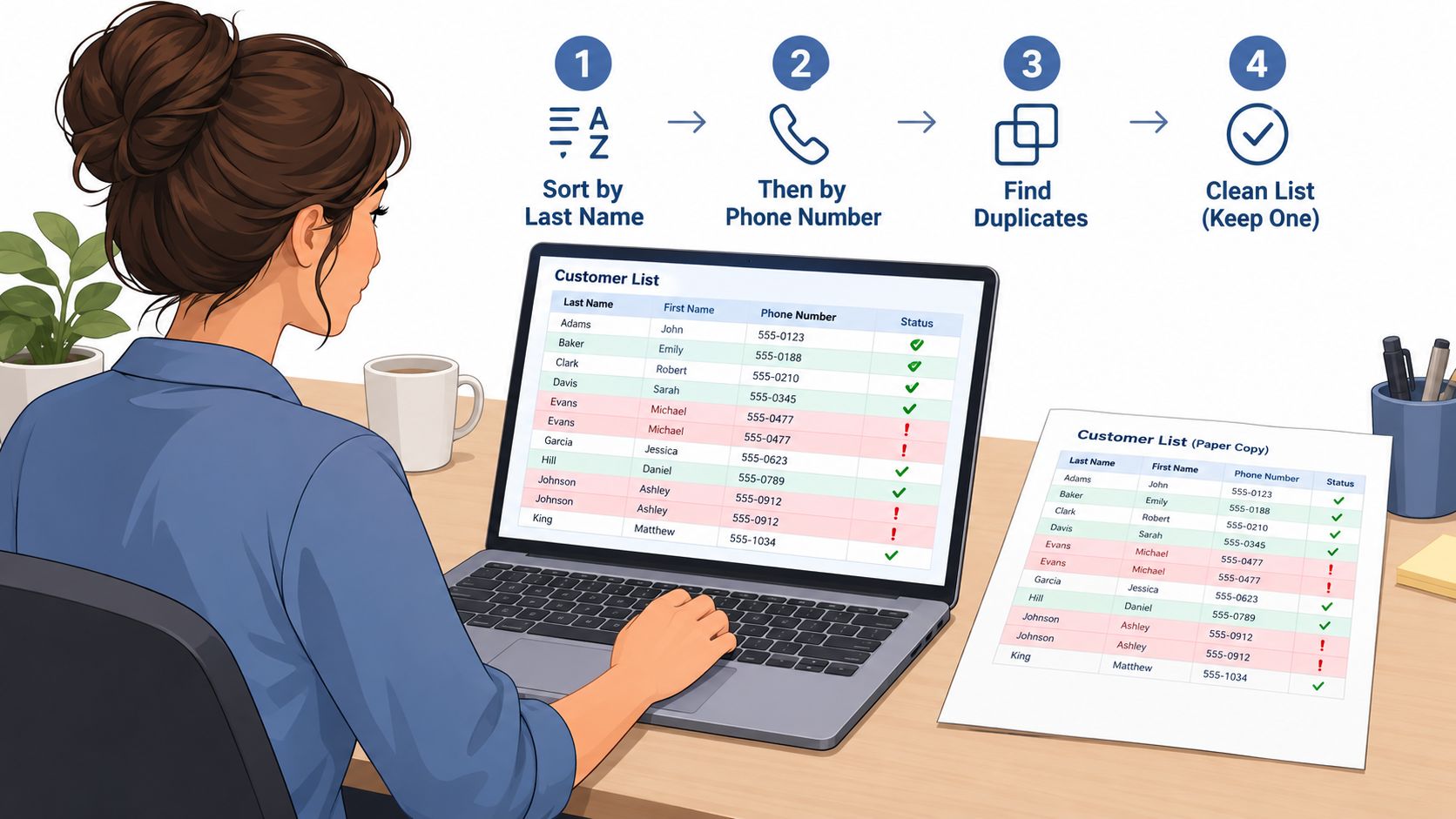
Work through the cleanup copy
- Flag obvious matches. Sort by last name and phone number, then flag shared numbers with different spellings. Flagging starts a review; it doesn't authorize a merge.
- Choose the matching key. Prefer an existing customer ID. Without one, use customer name plus service address as a candidate match, with phone and email as supporting evidence.
- Normalize phone numbers. Use a consistent format, preferably E.164 where supported, and store extensions separately. Otherwise, identical numbers can appear different.
- Standardize names and states. Use consistent state codes and review combined names. Bob and Linda Carrow may need separate contacts on a shared account rather than a single first-name field.
- Preserve distinct locations. Matching names at different addresses may represent separate properties, unrelated customers, or different billing entities. Compare the account relationship before merging anything.
- Create an exception queue. Check ambiguous entries against invoices, service records, or a customer call. A guess can attach another person's history to the wrong account.
- Review closed accounts before excluding them. Check outstanding balances, unresolved work, and retention needs. Inactive doesn't necessarily mean disposable.
Set aside office time before scheduling the import. The amount of review should follow the condition of the file, not an assumption that cleanup can happen between incoming calls.
The finished package should contain a clean CSV, a documented count of duplicate records removed, and a separate list of unresolved rows. Keep uncertain records out of the production batch until someone has made and recorded a decision.
Run a Small Test Import First
A useful test contains awkward records, not just complete names and email addresses. The batch should include a multi-property customer, recurring service with a note, a blank optional field, a known duplicate, a commercial account with separate contacts, and an inactive customer with an old balance.
OpenCRM's customer-data guidance recommends a small test batch to expose formatting and mapping problems before the full migration. The vendor should confirm whether a sandbox is available and whether any live test records can be safely removed.
Run the batch from the source file
- Extract the representative rows. Save them separately from the production CSV so the office can track exactly what was submitted.
- Keep the mapping sheet open. Compare each selected destination with the approved field rather than accepting automatic matches.
- Record errors verbatim. Log the message, source row, customer ID, and rejected value.
- Correct the source file. Editing only the imported profile leaves the same defect in the next upload.
- Repeat under an agreed reset procedure. Confirm whether another run updates existing records or creates new ones before submitting the batch again.
Then inspect what the importer accepted. Compare submitted rows with accepted and rejected rows, check phone and date displays, and open the related property records. Inspect the full text of notes and tags rather than relying on a shortened list view.
Ask in advance whether failed rows appear in a downloadable report. Skipped rows without clear identification are harder to investigate than a clearly identified rejection.
A clean test run has no unexplained failures and a written list of fields that didn't transfer.
A missing field isn't automatically acceptable. The owner needs to approve an alternative destination, manual entry, or a deliberate decision to leave it behind before the full import proceeds.
Fix Common Import Errors Before They Spread
Import errors, likely causes, and fixes
| Symptom | Likely cause | Fix |
|---|---|---|
| Phone numbers rejected | Mixed formats, extra characters, or no country code | Standardize to one supported format before upload |
| More customers in the new system than in the source | Same customer entered twice with different spellings | Deduplicate on customer ID or name plus address, then correct affected records |
| Service dates show the wrong month or year | Day-first and month-first dates mixed in one column | Re-export dates as YYYY-MM-DD |
| Properties attached to the wrong customer | Matching done on name alone, no customer ID | Re-map using customer ID and the property key |
| Rows missing after import | Required field blank or invalid pick-list value | Request the vendor's error report and fix flagged rows |
| Accented characters garbled | File saved in the wrong encoding | Save the file as UTF-8 CSV |
| Notes cut short | Character limit on the destination field | Check the limit and move long notes to a supported note record or attachment |
| Status values not recognized | Source values such as Done or Archived don't match new options | Map each source value to an approved destination value |
Keep an error log with the affected record IDs, the cause, the correction, and the result of the rerun. Migration guidance from ZDNET emphasizes mapping, testing, and data integrity rather than treating file acceptance as completion.
Inspect values that can look correct
Dates deserve close attention because a day-first value may also be a valid month-first value. Use the destination's documented date format and compare the displayed result with the original appointment or invoice.
For example, a crew might discover that imported service dates show the wrong year after a mixed-format text column was interpreted incorrectly. The office should correct the source dates and identify the affected records by stable ID. The vendor should confirm whether those records can be updated directly or require controlled removal and reimport.
Deleting records is not a routine cleanup shortcut. Imported profiles may already have jobs, payments, or messages attached. Removal needs an approved procedure that preserves those relationships.
Character limits require a different check. Compare long notes with the original text, especially the ending, where truncation is easiest to miss. If a field can't hold the content, use a supported note or attachment rather than splitting critical instructions unpredictably.
Finally, map status by meaning. Done might describe a completed job, while Active describes a customer account. Those values shouldn't be substituted merely because the importer requires a choice.
Verify the Import Before Retiring Old Records
An upload confirmation says the file arrived. It doesn't establish that the office can schedule, bill, and find the right history from the imported records.
Wonderment Apps' migration validation guidance distinguishes record counts from completeness, duplicate checks, relationship integrity, valid values, and field-level accuracy. Each needs its own acceptance check.
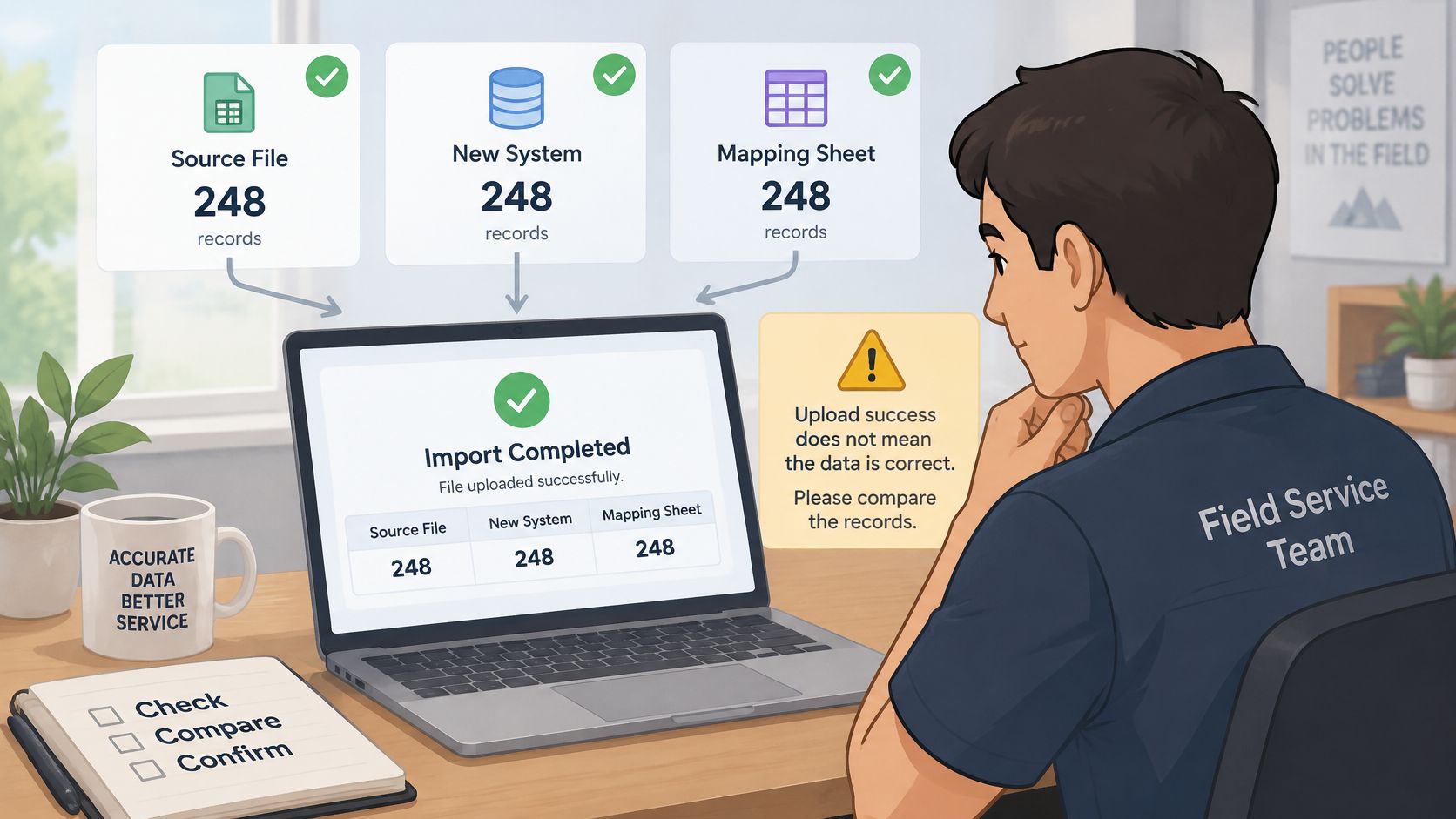
Complete the acceptance checks
- Reconcile counts by object. Compare unique customers and properties in the approved source with their destination totals. Property rows aren't the same as customer accounts; explain every difference in writing.
- Check required-field completeness. Review every active customer for the information needed to schedule and bill.
- Compare representative accounts. Include residential, commercial, recurring, inactive, and multi-property records. Check against the untouched original, not just the cleaned CSV.
- Inspect relationships and history. Confirm that properties, jobs, notes, invoices, and balances belong to the intended customer.
- Approve open financial items. Compare open estimates and unpaid invoices with the original records, including amounts and payment status.
- Investigate shared phone numbers. Search for possible duplicate profiles, while preserving legitimate shared household or business contacts.
- Export the destination records. Store the export securely with the original spreadsheet and the final import report.
The owner should sign off on balances and unresolved exceptions before the old system stops serving as an operational reference. Preserve the approved archive according to the business's retention requirements, with restricted access.
Acceptance means usable records: The office can find the correct property, schedule the intended service, and bill the correct account.
During the first week, office staff should watch for duplicate reminders, repeated invoices, missing access instructions, and recurring work attached to the wrong site. Record those incidents against the affected customer IDs so corrections remain traceable.
Decide Whether to Hire Vendor Migration Help
A clean contact list with straightforward properties and no financial history may be manageable in-house. Years of invoices, custom fields, multi-site accounts, or records spread across different systems justify asking for migration assistance.
Paying for help should buy a defined result, not merely an upload. Experian's customer-experience data-quality report highlights why incomplete or inaccurate source information needs attention: moving a record doesn't make its contents correct.
Ask Jobber, Housecall Pro, and ServiceM8 about the actual file
For Jobber, Housecall Pro, and ServiceM8, the owner should request a written migration scope based on representative source files. Import assistance, historical-data conversion, and data cleanup should be treated as separate services until the vendor confirms otherwise.
The same request should go to each vendor. That makes it possible to compare the proposed work without assuming that a subscription includes migration, that support staff will clean the spreadsheet, or that a customer importer also accepts invoices.
No verified vendor pricing or migration-plan terms are established here. A business shouldn't budget for included assistance, a particular plan, or an extra migration fee without a current vendor quote and documented scope.
Get the deliverables in writing
- Objects and relationships. Confirm customers, properties, contacts, notes, custom fields, tags, invoices, payments, balances, attachments, recurring jobs, and historical appointments.
- Rejected records. Specify the error report, who corrects failures, and whether corrections are included.
- Test migration. Establish the sample, acceptance checks, reset procedure, and responsibility for approval.
- Future exports. Confirm available formats, stable IDs, relationship preservation, cancellation access, fees, and deadlines.
- Security and access. Identify hosting arrangements, authorized users, file-transfer methods, and deletion of temporary exports.
- Communication preferences. Preserve marketing opt-ins, unsubscribe status, consent dates, and channel preferences. Missing consent information shouldn't become permission to send marketing.
- Cleanup responsibility. State whether the vendor validates, deduplicates, transforms, or only loads the supplied records.
Privacy controls belong in the scope, not in a later cleanup task. The European Data Protection Board's guidance on individual rights explains the importance of usable, machine-readable personal data and relevant metadata where portability rights apply.
The owner or office manager should begin with the mapping sheet, prepare a representative CSV, and send that sample to the shortlisted vendors with the written checklist. Book and approve the test import before authorizing the full migration or retiring the old records.